
Browser Security Settings for Small Business Teams
Default browser configurations expose small teams to silent data exfiltration that requires zero configuration to mitigate, shifting risk from technical complexity to policy enforcement.
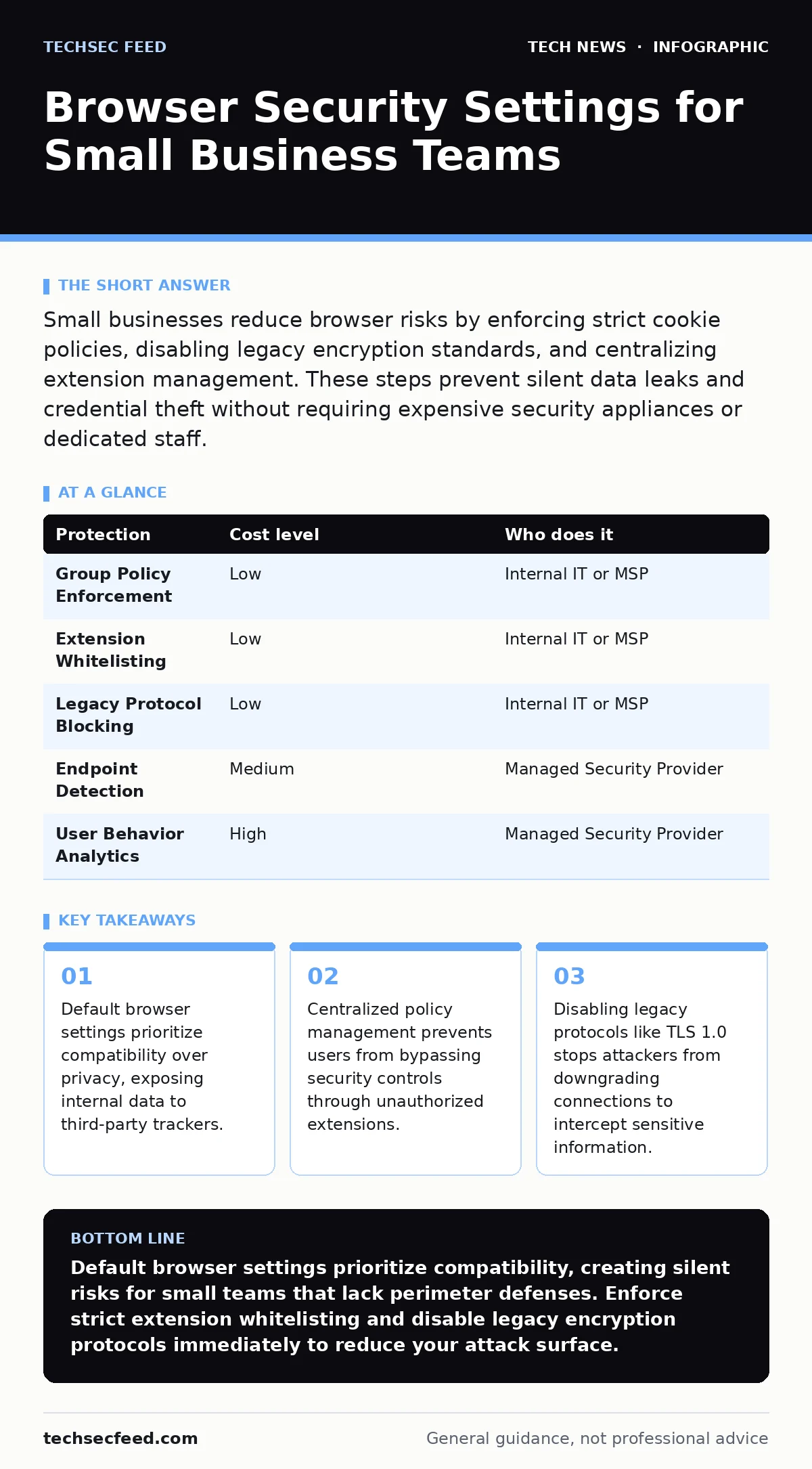
Small businesses reduce browser risks by enforcing strict cookie policies, disabling legacy encryption standards, and centralizing extension management. These steps prevent silent data leaks and credential theft without requiring expensive security appliances or dedicated staff.
The Hidden Cost of Default Configurations
Most users treat browsers as neutral windows to the internet. In reality, browsers are complex operating systems that execute untrusted code on every page load. Default settings prioritize user experience and compatibility, often at the expense of security. This trade-off matters for small organizations because they lack the network perimeter defenses that larger enterprises rely on.
When a browser allows third-party cookies, it enables cross-site tracking. Attackers use this capability to correlate user behavior across different sites. This correlation helps them build detailed profiles, which they use to craft targeted phishing attacks. The risk is not just privacy loss; it is the erosion of your ability to detect anomalous behavior.
You must understand that browser security is not a one-time setup. It is a continuous process of hardening. Each new browser update may reset certain policies or introduce new permissions. Without a structured approach, your security posture degrades over time. This decay is invisible until an incident occurs.
Centralizing Control Without Centralized IT
Small teams often assume they need a dedicated security operations center to manage browser security. This is incorrect. The goal is to reduce the attack surface, not to monitor every click. You can achieve significant protection by standardizing the browser environment across all devices.
Use group policy objects or mobile device management solutions to enforce settings. These tools allow you to push configurations to multiple devices simultaneously. You can disable JavaScript for specific high-risk sites, block automated downloads, or restrict access to the browser’s internal settings page. This prevents users from accidentally disabling security features.
Consider the trade-off between usability and security. Blocking all pop-ups improves security but may break legitimate authentication flows. You must test these policies in a non-production environment before deploying them widely. The goal is to find the balance where security does not hinder daily work.
| Protection | Cost level | Who does it |
|---|---|---|
| Group Policy Enforcement | Low | Internal IT or MSP |
| Extension Whitelisting | Low | Internal IT or MSP |
| Legacy Protocol Blocking | Low | Internal IT or MSP |
| Endpoint Detection | Medium | Managed Security Provider |
| User Behavior Analytics | High | Managed Security Provider |
Managing the Extension Supply Chain
Browser extensions are the most common vector for compromise in small organizations. Users install them to improve productivity, often without checking for security warnings. An extension with permission to "read and change all your data on all websites" has the same access as the user.
You must treat extensions like software installations. Only allow extensions from verified sources. Maintain a whitelist of approved extensions. Block all others by default. This prevents malicious or poorly maintained extensions from accessing sensitive data.
Regularly audit installed extensions. Remove those that are no longer used or updated. An outdated extension may contain known vulnerabilities that attackers exploit. The cost of maintaining a whitelist is low, but the risk of ignoring it is high. This is where the principles of secure software development apply, even when you are not writing the code yourself.
Disabling Legacy Encryption Standards
Browsers support multiple encryption protocols to ensure compatibility with older servers. This compatibility creates a vulnerability known as protocol downgrade. An attacker can force a browser to use an older, weaker encryption method. This allows them to intercept and read traffic that should be secure.
Disable support for TLS 1.0 and TLS 1.1 in your browser settings. These protocols are deprecated and contain known weaknesses. Modern browsers still support them by default for legacy reasons. You must explicitly disable them to prevent downgrade attacks.
This step is critical for protecting data in transit. It ensures that all communications use strong encryption. However, it may break connections to very old internal systems. You must identify and update these systems before enforcing the policy. This aligns with best practices for certificate management, ensuring that your encryption infrastructure is modern and secure.
Isolating Sensitive Operations
Not all browsing sessions carry the same risk. Visiting a public news site is different from accessing your banking portal. You should isolate high-risk activities from daily browsing. This limits the impact of a compromise.
Use separate browser profiles for different tasks. One profile for general web browsing, another for work, and a third for sensitive financial transactions. Do not share cookies or history between these profiles. This contains the blast radius if one profile is compromised.
You can also use private browsing modes for sensitive tasks. These modes do not save history or cookies after the session ends. This reduces the amount of data available to attackers if your device is stolen. It is a simple, free measure that adds a layer of defense in depth.
See also: Privacy Laws for Small Business: Six Misreadings That Create Risk · Small Business AI Governance: Practical Controls for Limited Teams
Delegating to Managed Service Providers
Small businesses often lack the expertise to manage complex security settings. This is where managed service providers (MSPs) add value. They can configure and maintain your browser security policies. This allows your team to focus on core business activities.
When selecting an MSP, ask specific questions about their browser security practices. Do not accept vague promises of "comprehensive protection." You need to know the specific mechanisms they use.
- How do you enforce browser extension policies?
- What is your process for updating browser configurations?
- How do you handle legacy protocol support?
- Can you provide a report on browser security posture?
Monitoring for Anomalous Behavior
Even with strict settings, threats will emerge. You need a way to detect when something goes wrong. Monitoring browser behavior is one method. Look for unexpected changes in settings, new extensions, or unusual network traffic.
Endpoint detection and response tools can help with this. They monitor processes and network connections on your devices. They can alert you to suspicious activity, such as a browser process connecting to a known malicious server.
This is not a substitute for strong security settings. It is a backup. Settings prevent attacks; monitoring detects them when prevention fails. You need both to maintain a secure environment. This approach complements strategies for API key security, ensuring that compromised credentials are detected quickly.
Key takeaways
- Default browser settings prioritize compatibility over privacy, exposing internal data to third-party trackers.
- Centralized policy management prevents users from bypassing security controls through unauthorized extensions.
- Disabling legacy protocols like TLS 1.0 stops attackers from downgrading connections to intercept sensitive information.
Default browser settings prioritize compatibility, creating silent risks for small teams that lack perimeter defenses. Enforce strict extension whitelisting and disable legacy encryption protocols immediately to reduce your attack surface.
Frequently asked questions
Do I need a dedicated security team to manage browser settings?
No. You can use group policies or mobile device management tools to enforce settings. These tools automate the process, reducing the need for manual oversight.
How often should I update browser security policies?
Update them whenever a new browser version is released. Updates may reset policies or change permission models. Regular reviews ensure your settings remain effective.
Can users override security settings if they are annoyed?
If configured correctly, users cannot override enforced policies. They may be able to use private browsing, but they cannot disable core security features like extension whitelisting.
What is the biggest risk with browser extensions?
The biggest risk is excessive permissions. Extensions that can read all website data can steal credentials and session tokens. Always restrict permissions to the minimum necessary.
How this guide was produced: written by the TechSec Feed editorial team with AI assistance, checked against the public references listed below, and reviewed when the facts change. See our editorial policy or report an error.