
How Mac Malware Removal Actually Works: Step-by-Step Mechanics
Most Mac malware hides in user libraries and login items, not in system folders, making simple deletion ineffective without clearing persistence hooks.
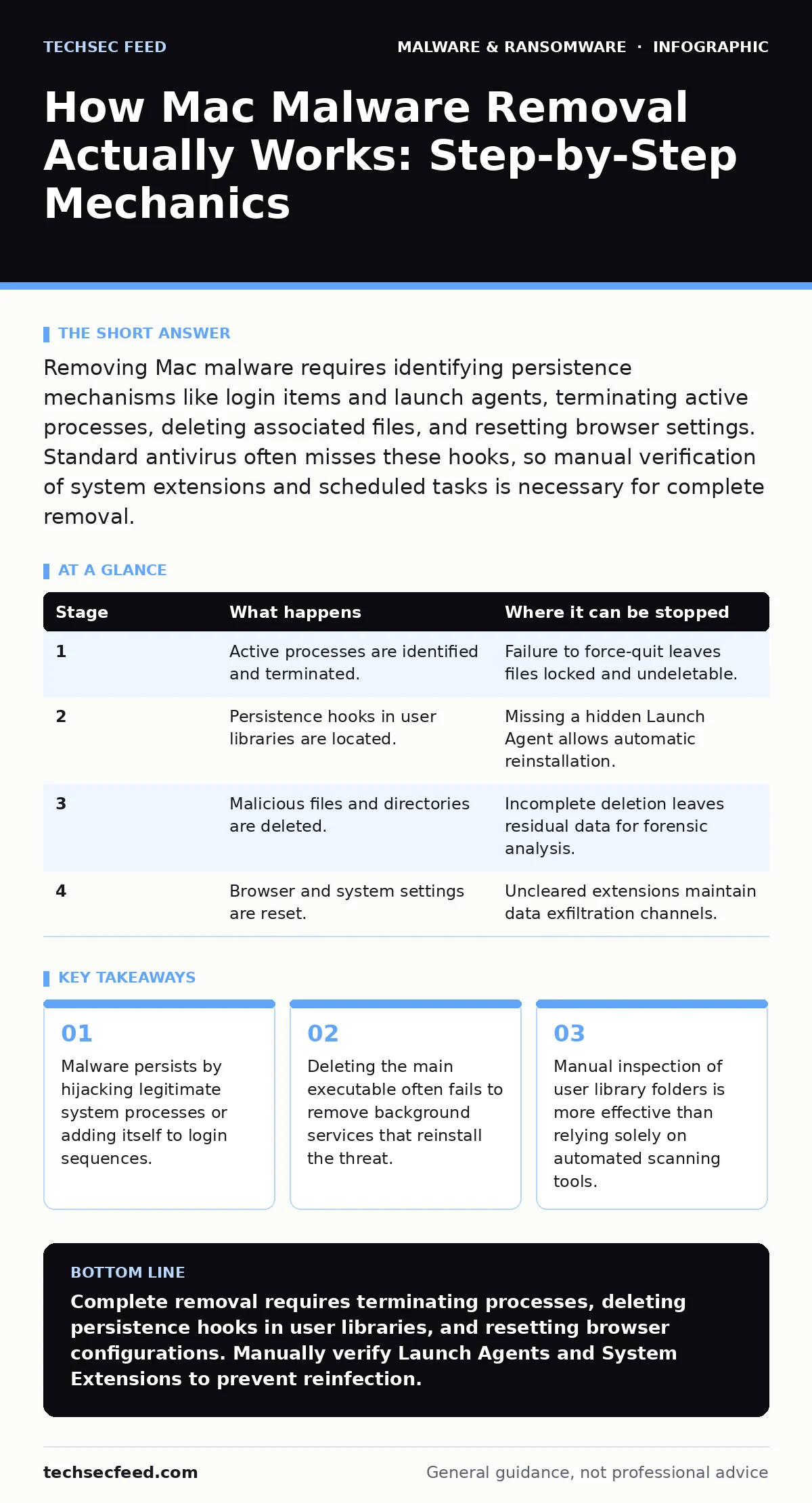
Removing Mac malware requires identifying persistence mechanisms like login items and launch agents, terminating active processes, deleting associated files, and resetting browser settings. Standard antivirus often misses these hooks, so manual verification of system extensions and scheduled tasks is necessary for complete removal.
The Persistence Mechanism
MacOS restricts access to core system directories through System Integrity Protection, which prevents most software from modifying protected areas. This security feature forces malware to hide in user-writable directories instead of the main operating system folder. Attackers typically place malicious files in the user Library folder, which resides in your home directory. This folder contains application support data, caches, and configuration files that the system expects to change frequently.
The malware installs a persistence mechanism to ensure it runs every time you start your computer. It achieves this by adding an entry to your Login Items or creating a Launch Agent. A Launch Agent is a property list file that tells the operating system to start a specific program when you log in. If you delete the visible application but leave the Launch Agent intact, the system will attempt to run the missing file, often triggering an error or causing the malware to reinstall itself from a cached copy.
Stage 1: Process Termination
You must stop the malware from running before you can delete its files. MacOS locks files that are currently in use by a running process, preventing deletion. Open Activity Monitor to locate the malicious process. Look for applications with generic names or high CPU usage that you do not recognize. Right-click the process and select Quit. If the process refuses to quit, select Force Quit.
If the process restarts immediately, the persistence mechanism is still active. This indicates that another process is spawning the malware. You may need to repeat the termination step after removing the persistence hooks in later stages. Do not skip this step, as moving files while they are in use can corrupt the filesystem or leave fragments behind.
| Stage | What happens | Where it can be stopped |
|---|---|---|
| 1 | Active processes are identified and terminated. | Failure to force-quit leaves files locked and undeletable. |
| 2 | Persistence hooks in user libraries are located. | Missing a hidden Launch Agent allows automatic reinstallation. |
| 3 | Malicious files and directories are deleted. | Incomplete deletion leaves residual data for forensic analysis. |
| 4 | Browser and system settings are reset. | Uncleared extensions maintain data exfiltration channels. |
Stage 2: Locating Persistence Hooks
The most common hiding place for Mac malware is the ~/Library/LaunchAgents directory. This folder contains XML files that define programs to run at login. Open Finder and press Shift-Command-G to open the Go to Folder window. Type ~/Library/LaunchAgents and press Enter. Look for files with names that resemble system services but have slight spelling variations or odd extensions.
Another common location is ~/Library/Application Support. Malware often creates a folder with a random or generic name to store its payload and configuration files. You may also find persistence in ~/Library/LaunchDaemons, though these require higher privileges and are less common for standard user-level malware. Check the ~/Library/Preferences folder for suspicious property list files that may configure the malware’s behavior. These files often contain URLs pointing to command-and-control servers.
Stage 3: File Deletion and Cleanup
Once you have terminated the processes and identified the malicious files, delete them. Move the files to the Trash and then empty the Trash. Ensure you delete the entire directory associated with the malware in Application Support, not just the executable file. Residual configuration files can allow the malware to recover if it is re-introduced to the system.
You should also check for Kernel Extensions or System Extensions. Modern MacOS versions prefer System Extensions, which are easier to manage via the Privacy & Security settings. Older malware may use Kernel Extensions, which load into the core of the operating system. These require a reboot to unload and delete. If you see unfamiliar extensions in System Information, disable them and delete the corresponding files from /Library/Extensions or /System/Library/Extensions.
Stage 4: Browser and System Reset
Malware often installs browser extensions to redirect traffic or inject ads. These extensions operate independently of the main operating system processes. Open each browser you use and check the extensions or plugins menu. Remove any extensions you did not install or do not recognize. Clear the browser cache and cookies to remove any tracking scripts or session hijacking tokens.
Resetting browser settings to default is a thorough way to remove hidden configuration changes. This step clears proxy settings that malware may have altered to intercept your HTTPS traffic. HTTPS encrypts data between you and the website, but malware can change your local proxy to decrypt and inspect that traffic before re-encrypting it. Clearing the proxy settings ensures your traffic goes directly to the internet without local interception.
See also: Application Allowlisting Misunderstandings That Break Security Controls · Dynamic Malware Analysis Misconceptions: 6 Errors That Skew Your Results
Limits of Automated Removal
Commercial antivirus software often struggles with Mac malware because it relies on signature matching. The malware described here often uses script-based payloads or masquerades as legitimate applications. Script blocking helps prevent execution, but once a script has run and installed persistence hooks, static scanning may not detect the small configuration files involved.
The limitation of automated tools is their inability to distinguish between a malicious Launch Agent and a legitimate one created by a user-installed application. You must manually verify the integrity of these files. Cross-reference the file location and name with known legitimate software. If you are unsure, searching the filename online can reveal if it is associated with known malware families. This manual verification is the only way to ensure you do not break legitimate software while removing the threat.
Verification and Monitoring
After removal, monitor your system for recurrence. Check Activity Monitor periodically for new unknown processes. Review your Login Items in System Settings to ensure no new entries have appeared. If the malware returns, it indicates a secondary persistence mechanism you missed or a reinfection from a compromised source.
Imagine you removed the malware but forgot to clear the browser proxy settings. Your traffic continues to be intercepted, and the malware can exfiltrate data even though the executable is gone. This scenario highlights the importance of checking network configurations, not just file systems. For a deeper understanding of how threats evolve to evade detection, see the guide on polymorphic malware.
Related Threat Vectors
Malware often enters through pirated software, which bypasses standard security checks. Users who install cracked applications assume the risk of embedded trojans. Unlike removing malware from an Android phone, Mac removal requires deeper system access due to the Unix-based architecture. Ensure your disaster recovery plans include clean system imaging to avoid reinfection.
Be wary of scareware, which uses fear tactics to convince you to install unwanted software. These programs often mimic legitimate security alerts. Verify any security warning through official channels before taking action. For more on securing external access, review the guide on overprivileged cloud identities.
Key takeaways
- Malware persists by hijacking legitimate system processes or adding itself to login sequences.
- Deleting the main executable often fails to remove background services that reinstall the threat.
- Manual inspection of user library folders is more effective than relying solely on automated scanning tools.
Complete removal requires terminating processes, deleting persistence hooks in user libraries, and resetting browser configurations. Manually verify Launch Agents and System Extensions to prevent reinfection.
Frequently asked questions
Does resetting my Mac delete all malware?
A factory reset wipes the entire drive, removing all malware, but it also deletes your data. Ensure you have a clean backup before performing a reset.
Can macOS Gatekeeper prevent all malware?
Gatekeeper blocks unsigned applications, but users can override this warning. Malware with valid certificates or user-approved overrides will bypass Gatekeeper.
Is it safe to use third-party cleaner apps?
Many cleaner apps are ineffective or contain adware themselves. Manual removal using built-in tools is safer and more reliable for targeted malware.
How do I know if my Mac is still infected?
Monitor for high CPU usage, unknown processes in Activity Monitor, and changes to browser settings. Persistent issues after removal indicate residual infection.
How this guide was produced: written by the TechSec Feed editorial team with AI assistance, checked against the public references listed below, and reviewed when the facts change. See our editorial policy or report an error.