
Removing Malware from Android: The Technical Restoration Path
Factory resetting an infected Android device often leaves residual permissions and cached credentials that allow the threat to persist or re-infect immediately upon cloud sync.
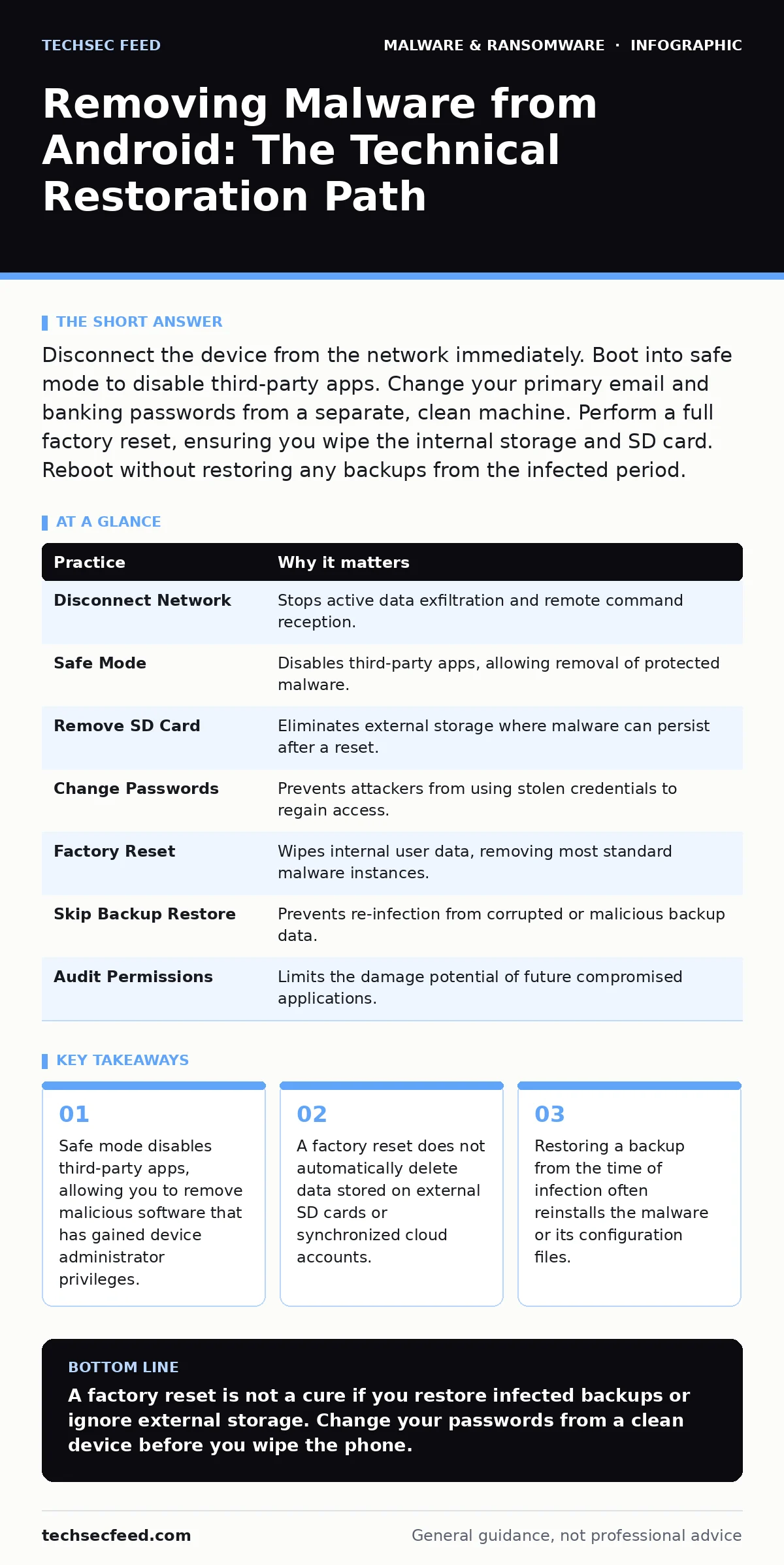
Disconnect the device from the network immediately. Boot into safe mode to disable third-party apps. Change your primary email and banking passwords from a separate, clean machine. Perform a full factory reset, ensuring you wipe the internal storage and SD card. Reboot without restoring any backups from the infected period.
Isolate the Digital Perimeter
When you suspect an Android device is compromised, the first priority is stopping the exfiltration of data. Malware often runs in the background, sending keystrokes, contacts, or authentication tokens to a remote server. Keeping the device connected to Wi-Fi or cellular data allows this communication to continue, regardless of what you do on the interface.
Imagine a banking trojan that captures screenshots of your financial apps. As long as the device has an internet connection, those images are transmitted. Disconnecting the device severs this pipeline. You must disable both Wi-Fi and mobile data. Airplane mode is the fastest way to achieve this, but you must also manually toggle off Bluetooth. Some modern threats use Bluetooth to bridge to a nearby compromised laptop or tablet, creating a local network for data transfer.
Enter Safe Mode to Strip Privileges
Android malware frequently requests "Device Administrator" rights. This permission allows the app to prevent itself from being uninstalled. Standard uninstallation procedures fail when an app holds this privilege. Safe mode is a diagnostic state that disables all third-party applications while keeping the core system functions active. This temporarily revokes the execution power of the malicious app, allowing you to remove it.
To enter safe mode, press and hold the power button until the power menu appears. Long-press the "Power off" option on the screen. A prompt will appear asking if you want to reboot to safe mode. Confirm this action. The device will restart, and "Safe mode" will appear in the lower corner of the screen. In this state, the malware is inert. You can now navigate to Settings, select Apps, and locate the suspicious application. If the app is hidden, look for applications with no name, no icon, or a generic system icon. Uninstall these immediately.
Neutralize External Storage Vectors
Many Android users store media and documents on external SD cards. Malware is not limited to the internal operating system partition. A trojan can copy itself to the SD card, creating a persistent reservoir of the threat. If you perform a factory reset on the internal storage but leave the SD card inserted, the malware can reinstall itself when the system scans the external drive for media.
Remove the SD card physically. If your device has a non-removable battery, you must power off the device and use a small tool to eject the tray. Once removed, do not insert the card into your computer yet. The card may contain executable files that could infect your workstation. Instead, treat the card as contaminated media. You should wipe the card entirely using a dedicated card formatter or by connecting it to a clean device and deleting all contents. This ensures no hidden executables remain in the root directory or subfolders.
Scrub Cloud Accounts and Credentials
The most dangerous aspect of Android malware is not the data currently on the phone, but the credentials it has already harvested. If the malware captured your Google account password, it can reset your device’s security settings remotely. It can also access your cloud backups, which may contain contacts, messages, and photos. If you restore these backups after cleaning the phone, you reintroduce the threat.
You must change your primary email password from a different, known-clean device. Do not change it on the infected phone. After changing the password, review the "Security" section of your account settings. Look for "Authorized devices" or "Recent activity." Terminate sessions for any device or location you do not recognize. Enable two-factor authentication if it is not already active. This step blocks the attacker from using stolen credentials to regain access to your account or push new malicious configurations to your device.
Execute a Verified Factory Reset
A factory reset returns the device to its original state by wiping the user data partition. This removes all apps, settings, and files stored in the internal memory. However, this process does not update the operating system or firmware. If the malware is a rootkit embedded in the system image, a standard factory reset will not remove it. You must ensure the device is running the latest security patches before or after the reset.
Navigate to Settings, select System, and then Advanced. Tap Reset options, then Erase all data (factory reset). Confirm the action. The device will reboot and take several minutes to wipe the storage. During this process, the device may ask for your Google account password to verify ownership. This is a security feature called Factory Reset Protection. Have your credentials ready. If you do not know the password, the device will remain locked, requiring professional support or a more invasive hardware-level wipe.
See also: Application Allowlisting Misunderstandings That Break Security Controls · Dynamic Malware Analysis Misconceptions: 6 Errors That Skew Your Results
Avoid the Restoration Trap
After the reset, the device will boot to the initial setup screen. It will prompt you to sign in and restore data from a backup. This is where most remediation efforts fail. If you have a backup from the period when the malware was active, restoring it will reinstall the malicious app or its configuration data. The malware may not be an app file itself, but a modified system setting or a corrupted database that the backup restores.
Do not restore any backups from the infected period. If you need to recover contacts or photos, export them individually from your cloud account using a clean computer. Do not use the automatic restore feature. Set up the device as new. Manually reinstall only the applications you trust, downloading them directly from the official Play Store. Avoid sideloading apps from unknown sources, as this bypasses the store’s security screening.
Rebuild Trust with Granular Permissions
Once the device is clean, you must configure it to resist future infection. Android uses a permission model that grants apps access to specific system resources. Malware often exploits overly broad permissions. For example, a flashlight app does not need access to your contacts or microphone. Granting these permissions increases the attack surface.
Review the permissions for every app you install. Go to Settings, then Apps, and select each application. Check the permissions granted. Revoke any permission that does not align with the app’s core function. For instance, disable location access for apps that do not require it for their service. Use the "Only allow with app in use" option for sensitive permissions like the camera and microphone. This limits the ability of malware to record audio or video when the app is running in the background.
| Practice | Why it matters |
|---|---|
| Disconnect Network | Stops active data exfiltration and remote command reception. |
| Safe Mode | Disables third-party apps, allowing removal of protected malware. |
| Remove SD Card | Eliminates external storage where malware can persist after a reset. |
| Change Passwords | Prevents attackers from using stolen credentials to regain access. |
| Factory Reset | Wipes internal user data, removing most standard malware instances. |
| Skip Backup Restore | Prevents re-infection from corrupted or malicious backup data. |
| Audit Permissions | Limits the damage potential of future compromised applications. |
Monitor for Behavioral Anomalies
Even after a thorough cleaning, you must monitor the device for signs of reinfection. Malware often changes its behavior to avoid detection. Instead of looking for specific app names, look for changes in system behavior. Increased battery drain, unexpected data usage, or apps opening on their own are common indicators.
Suppose your phone begins to heat up while idle. This suggests a process is running in the background. Identify any app consuming disproportionate resources. If an app you do not recognize appears, uninstall it immediately. Regularly check for system updates. Developers release patches to fix vulnerabilities that malware exploits. Keeping the operating system current closes these doors before attackers can enter.
For a deeper understanding of how software supply chains contribute to infection, see our guide on malware in pirated software. Understanding the source of the infection helps prevent future occurrences.
Key takeaways
- Safe mode disables third-party apps, allowing you to remove malicious software that has gained device administrator privileges.
- A factory reset does not automatically delete data stored on external SD cards or synchronized cloud accounts.
- Restoring a backup from the time of infection often reinstalls the malware or its configuration files.
A factory reset is not a cure if you restore infected backups or ignore external storage. Change your passwords from a clean device before you wipe the phone.
Frequently asked questions
Can I remove malware without a factory reset?
Only if the malware does not have device administrator rights. Safe mode allows you to uninstall most apps, but rootkits require a full system wipe or a clean OS flash.
Does Android have built-in antivirus?
Android includes Google Play Protect, which scans apps for known threats. It is not a full antivirus solution and may not detect new or customized malware.
Should I keep my SD card during the reset?
No. Remove the SD card before resetting. The reset process does not wipe external storage, and the card may contain malicious files.
How do I know if my phone is hacked?
Look for unknown apps, sudden battery drain, increased data usage, or pop-up ads. These are common signs of malicious software running in the background.
How this guide was produced: written by the TechSec Feed editorial team with AI assistance, checked against the public references listed below, and reviewed when the facts change. See our editorial policy or report an error.