
macOS Security Settings Checklist for Hardened Endpoints
Default macOS configurations often permit background processes to access sensitive data without explicit user consent, creating silent exposure vectors.
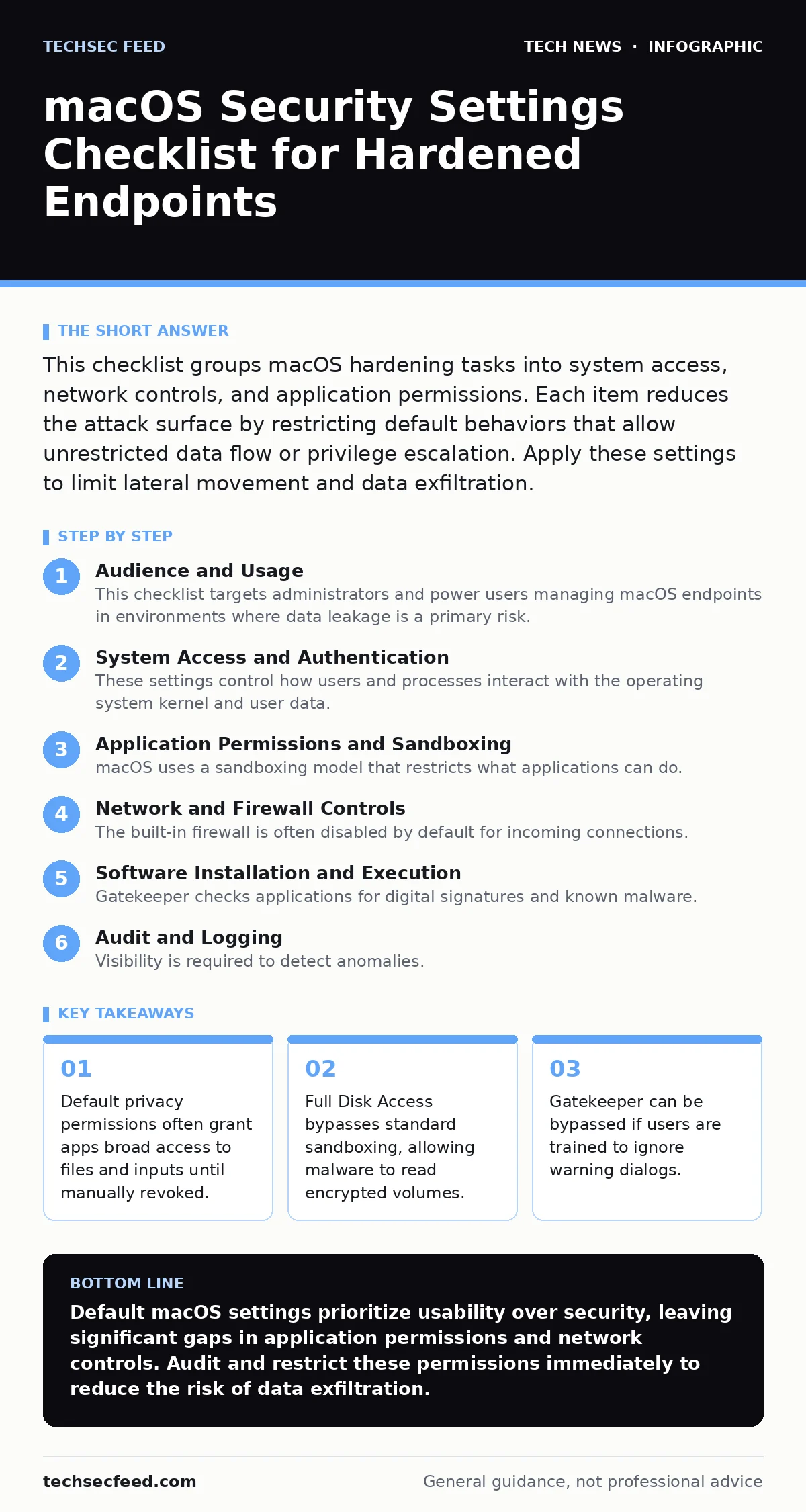
This checklist groups macOS hardening tasks into system access, network controls, and application permissions. Each item reduces the attack surface by restricting default behaviors that allow unrestricted data flow or privilege escalation. Apply these settings to limit lateral movement and data exfiltration.
Audience and Usage
This checklist targets administrators and power users managing macOS endpoints in environments where data leakage is a primary risk. You should apply these settings after initial deployment but before connecting to untrusted networks. The goal is not to break functionality but to enforce least privilege. Expect some friction with legacy applications that expect unrestricted system access.
System Access and Authentication
These settings control how users and processes interact with the operating system kernel and user data. Misconfigurations here often lead to credential theft or unauthorized file access.
- Enable FileVault: Encrypts the entire drive, rendering data unreadable if the physical device is stolen or removed from the system.
- Set automatic lock after inactivity: Forces re-authentication if the user steps away, preventing unauthorized physical access to an unlocked session.
- Require password for System Preferences changes: Prevents casual users or malware from altering security configurations without administrative credentials.
- Disable guest account: Removes a login option that bypasses user-specific restrictions and often lacks audit logging.
- Enable firmware password: Blocks booting from external drives or recovery mode, stopping offline disk cloning or OS replacement attacks.
Application Permissions and Sandboxing
macOS uses a sandboxing model that restricts what applications can do. However, users often grant "Full Disk Access" or "Accessibility" permissions to apps that do not need them, effectively disabling these protections. This is a common failure point in standard advice.
- Review Full Disk Access list: Remove any application that does not require reading all files, as this permission bypasses file sandboxing.
- Restrict Accessibility permissions: Only grant this to tools that need to control the mouse or keyboard, as it allows keylogging and screen capture.
- Disable automatic app downloads: Prevents the system from silently installing software from the App Store or third-party sources.
- Review Screen Recording permissions: Revokes access for apps that do not need to capture the display, protecting against hidden screen scraping.
- Limit Camera and Microphone access: Ensures only necessary applications can record audio or video, preventing covert surveillance.
Network and Firewall Controls
The built-in firewall is often disabled by default for incoming connections. While macOS blocks unsolicited inbound traffic by default for many services, explicit rules provide clearer audit trails and prevent misconfigurations in complex network environments.
- Enable Application Firewall: Blocks incoming connections to applications unless explicitly allowed, reducing the risk of remote exploitation.
- Block all incoming connections: A strict setting that forces you to whitelist only necessary services, minimizing the attack surface for network-based attacks.
- Disable automatic Wi-Fi joining: Prevents the device from connecting to open or known networks without user interaction, avoiding rogue access point traps.
- Review IPv6 security settings: Ensure IPv6 traffic is filtered similarly to IPv4, as attackers often target IPv6 when IPv4 firewalls are strict.
Software Installation and Execution
Gatekeeper checks applications for digital signatures and known malware. However, users can bypass these checks by holding the control key or changing settings. Hardening this layer requires restricting who can install software.
- Restrict app sources to App Store and identified developers: Prevents the execution of unsigned code, which is often used in targeted malware campaigns.
- Disable automatic installation of updates: Forces manual review of updates, allowing you to verify the integrity of patches before they are applied.
- Review login items: Removes applications that start with the system, reducing the attack surface for persistence mechanisms.
- Disable remote login (SSH): Prevents remote command execution unless explicitly needed, closing a common vector for brute-force attacks.
Audit and Logging
Visibility is required to detect anomalies. Default logging is often insufficient for forensic analysis. Enabling detailed logs ensures that suspicious activities are recorded for later review.
- Enable login window logging: Records successful and failed login attempts, providing a trail for detecting credential stuffing or brute-force attacks.
- Configure syslog retention: Ensures logs are stored long enough to detect slow-moving threats that do not trigger immediate alerts.
- Review privacy reports: Use the built-in privacy report to see which apps have accessed sensitive data recently, identifying potential misuse.
Integration with Development Practices
For teams that build software, endpoint security intersects with development workflows. Ensure that developers do not bypass security controls for convenience. This aligns with principles found in secure software development and API key security guides. Developers often store secrets in environment variables or local files, which become accessible if Full Disk Access is granted to their IDEs.
- Restrict IDE permissions: Limit code editors to only the project folders they need, preventing accidental exposure of other sensitive files.
- Use hardware security keys: Enforce multi-factor authentication for administrative tasks, reducing the risk of credential theft via phishing.
- Audit certificate management: Regularly review installed certificates, as rogue certificates can intercept HTTPS traffic within the local network.
Key takeaways
- Default privacy permissions often grant apps broad access to files and inputs until manually revoked.
- Full Disk Access bypasses standard sandboxing, allowing malware to read encrypted volumes.
- Gatekeeper can be bypassed if users are trained to ignore warning dialogs.
Default macOS settings prioritize usability over security, leaving significant gaps in application permissions and network controls. Audit and restrict these permissions immediately to reduce the risk of data exfiltration.
Frequently asked questions
Does enabling FileVault slow down my Mac?
Modern Macs with Apple Silicon or T2 chips handle encryption in hardware, so the performance impact is negligible for most users.
Can I whitelist an app for the firewall without a password?
No, changing firewall rules requires administrative privileges to prevent unauthorized changes to network security policies.
What happens if I disable all incoming connections?
Your Mac will not respond to ping requests or incoming connection attempts, which may break some network discovery features but improves security.
How often should I review application permissions?
Review them quarterly or whenever new software is installed, as permissions are often granted during initial setup and rarely revisited.
How this guide was produced: written by the TechSec Feed editorial team with AI assistance, checked against the public references listed below, and reviewed when the facts change. See our editorial policy or report an error.